Interactions Matrix
Slicer & Cross-Filter Map
Analyze
Overview
Features
Prompts
Troubleshooting
Key Features
You have 15 visuals on a page with 4 slicers. Some slicers should filter everything, some should only affect specific visuals, some cross-filtering needs to be disabled. In Power BI Desktop, you check interactions one visual at a time — clicking through every possible pair. This skill generates a complete interaction matrix as a styled Excel workbook, lets you edit interactions directly, and compares changes before applying them.
How it works
Type /interactions-matrix and the skill operates in three modes:
Generate — scans the page and produces a complete interaction map as a styled Excel workbook
Edit — modify interactions directly (set NoFilter, DataFilter, or default between any pair of visuals) and auto-generate an updated report
Compare — provide an updated spreadsheet, the skill generates a fresh baseline, diffs the two, shows you the changes, and applies them to the model
What you get
Styled Excel workbook (2 sheets):
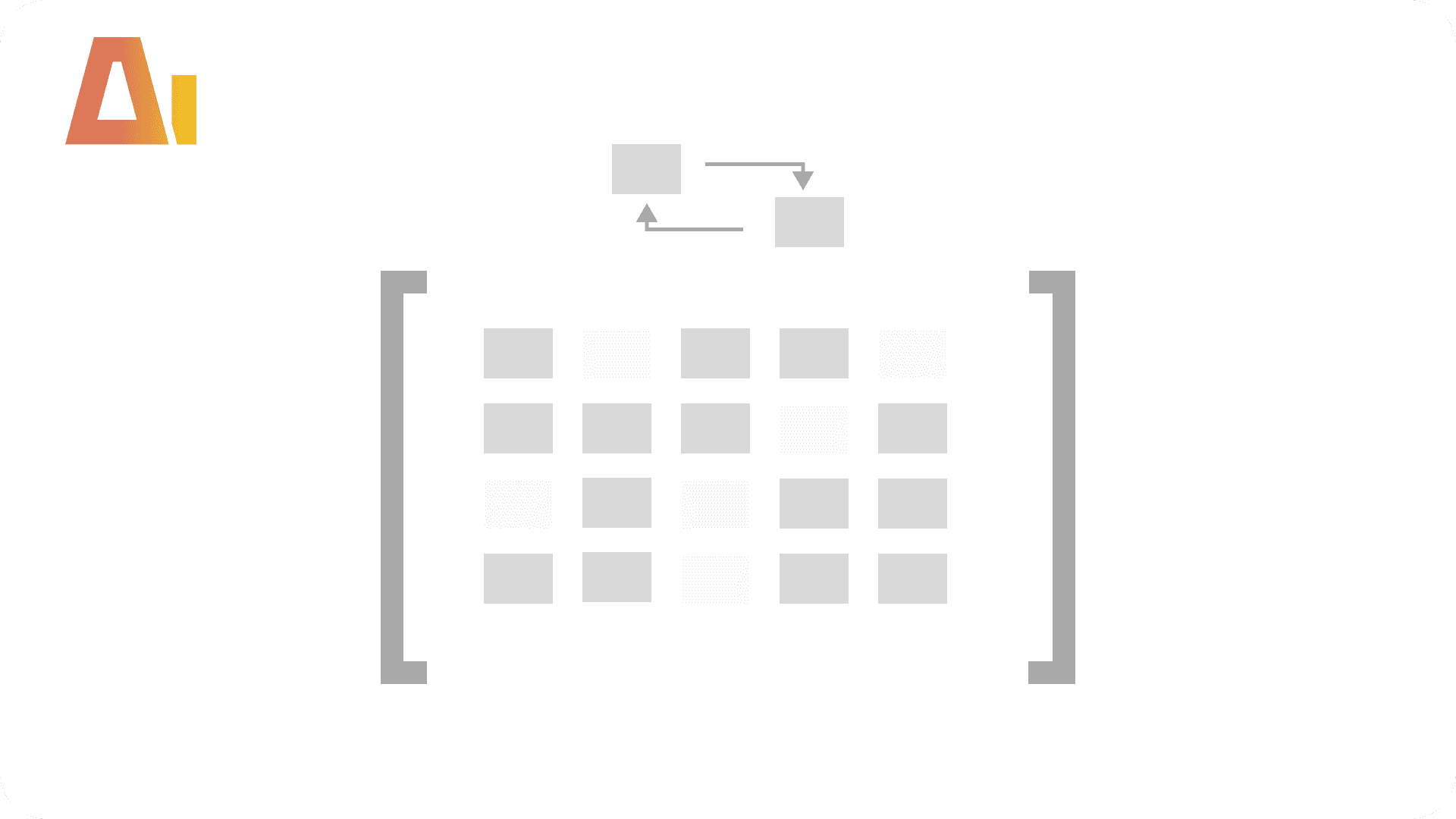
Slicer Matrix — rows are visuals, columns are slicers, cells show which visuals each slicer affects
Interaction Matrix — square matrix showing cross-filter (CF), cross-highlight (CH), no effect (NE), or disabled for every visual pair
Output file: {project}_interactions_matrix_{date}_{time}.xlsx
Explore more in this category

Best Practice Analysis
Analyze
Parse Tabular Editor BPA exports, match against 71 Microsoft rules, and generate a prioritized findings report.

Bookmark Analysis
Analyze
Simulate bookmark navigation, detect visual leaks, and fix show/hide issues across bookmark chains.
Color Analysis
Analyze
Extract every color assignment across all visuals, resolve theme colors to hex, and flag discrepancies.
Measure Killer Analysis
Analyze
Identify unused measures, DAX complexity issues, and dependency health across your entire model.