Expand/Collapse Matrix
Hierarchy Toggle Buttons
Build
Overview
Features
Prompts
Troubleshooting
Key Features
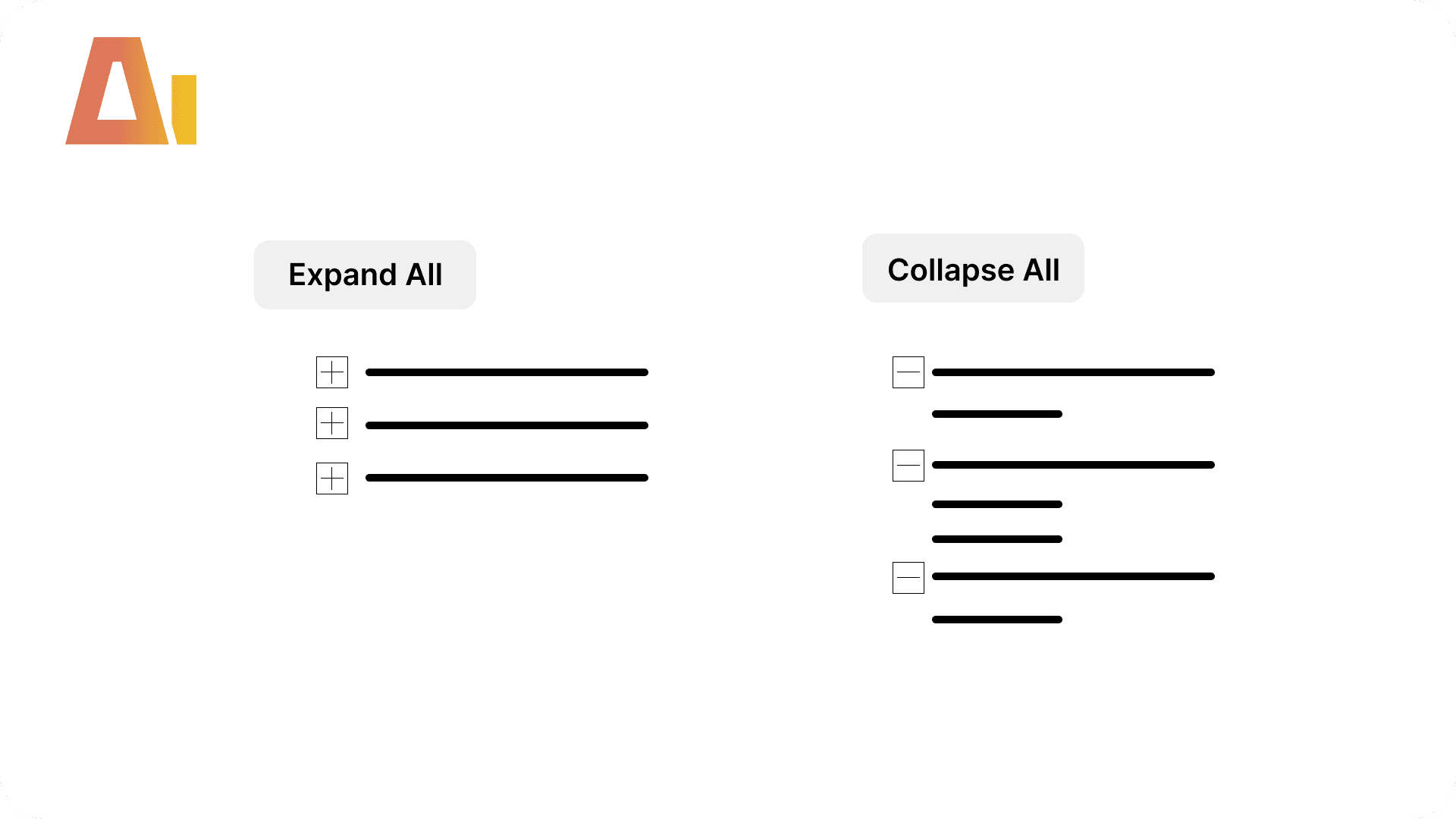
Add Expand All / Collapse All buttons to any matrix with hierarchy rows using bookmark-based visibility toggle.
Your matrix has two or three row levels — a user opens the report and sees everything collapsed. They click the expand arrow on each row, one by one, to see the detail. There's no "Expand All" button in Power BI. Building one yourself means duplicating the matrix with pinned expansion states, creating two action buttons with bookmark-based visibility toggle, writing bookmark files that correctly show/hide four visuals at once, and getting the VCO formatting right so the buttons don't look broken. This skill builds the entire toggle — expanded matrix, buttons, bookmarks, and visibility wiring — in one command.
How it works
Type /expand-collapse-matrix, select your matrix, and the skill builds the full toggle:
Duplicates the matrix as an exact copy (same fields, formatting, filters)
Sets all row projections to
active: trueand addsexpansionStateswithisPinned: trueto force full expansionCreates two action buttons — "Expand All" and "Collapse All" — positioned inside the same visual group
Creates two bookmarks that toggle visibility between the collapsed and expanded matrices
Hides the expanded matrix and Collapse All button by default
Registers the bookmark group in bookmarks.json
What you get
Expanded matrix — exact clone with all hierarchy levels pinned open via
expansionStatesTwo action buttons — "Expand All" shows the expanded matrix, "Collapse All" switches back
Two bookmarks — pure visibility toggles with
suppressData: true(no filter side-effects)Bookmark group — registered in bookmarks.json so the toggle pair stays organized
Explore more in this category
Absolute / Percentage Toggle
Build
Add a two-button tile slicer to any chart that switches between absolute values and a percentage variant, with a dynamic format string and auto-derived chart title.

Active Filters Card Visual
Build
Generate a card visual that dynamically displays all currently active slicer and filter selections.
Clone Page
Build
Clone any report page with all visuals, bookmark navigators, interactions, and drillthrough bindings as a fully independent copy.
Convert to Trendline
Build
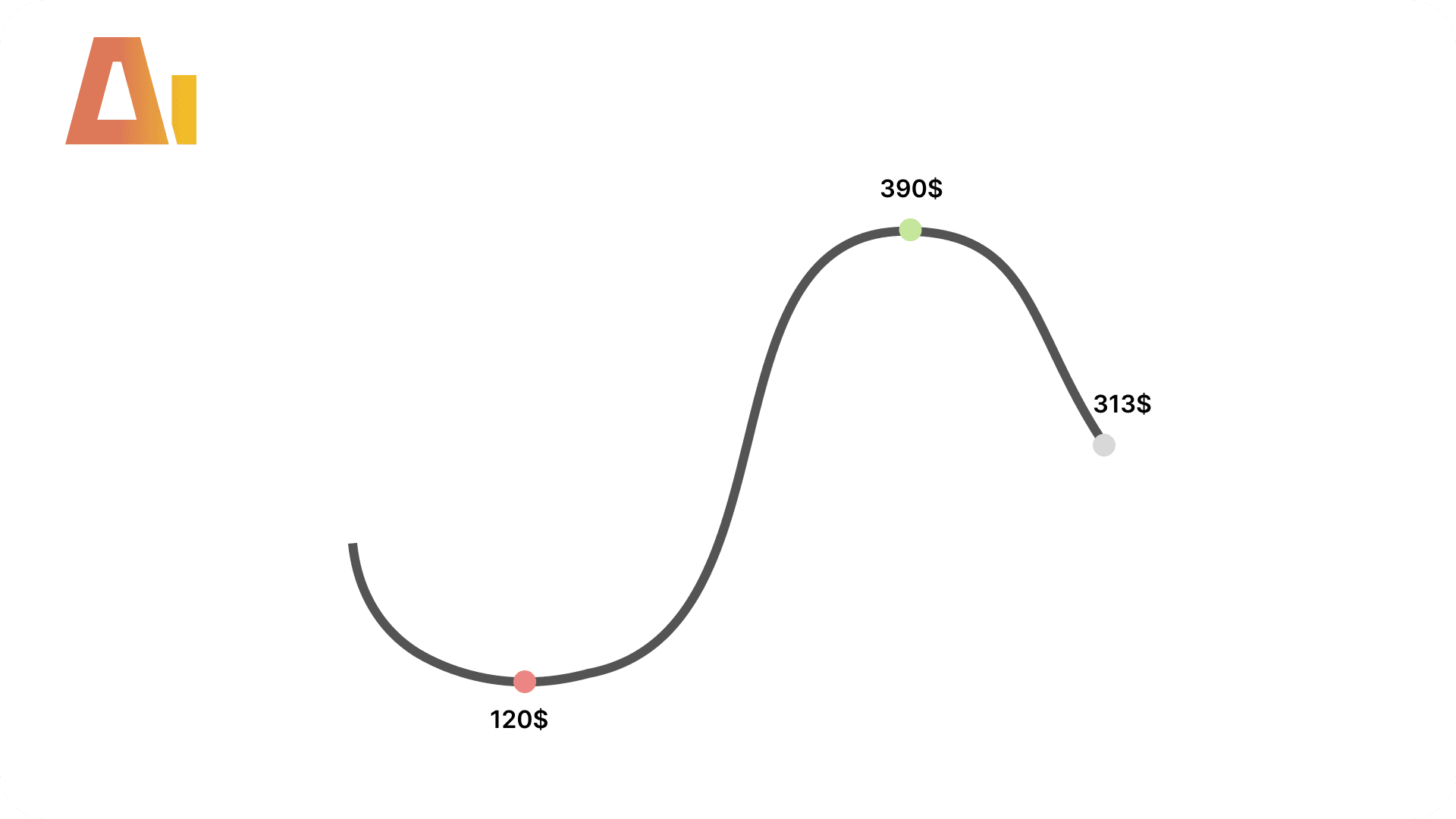
Add formatted data labels, markers, area shading, and a canvas tooltip to line chart visuals.